People often mix Infomaniak user accounts with email addresses. They try to sign in to the Manager or kSuite using a mailbox login — and it fails. This guide explains the difference and how to attach an existing mailbox to someone, whether they already belong to your organisation or not.
User account vs mailbox
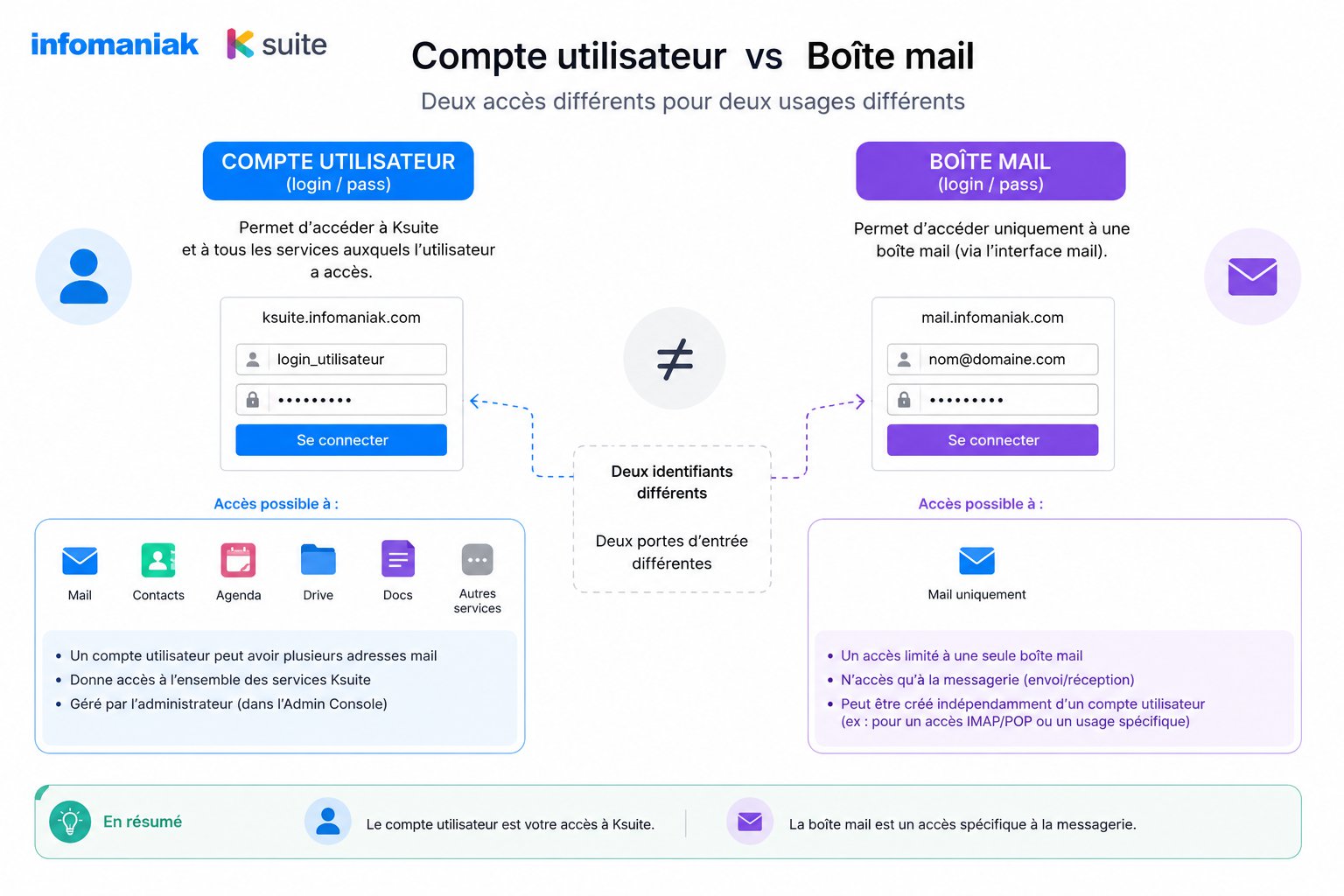
A user account (within an Organisation) is what authenticates you with Infomaniak: Manager access, the Mail web app, switching accounts when you belong to several organisations, two-factor authentication, and so on.
An email address is a mailbox (storage, send/receive). It usually has a mailbox password or application passwords for clients like Outlook or a phone — but that is not necessarily the same credential as the Infomaniak account used for the Manager.
Common mistake
address@domain + mailbox password on the Manager sign-in page only works if that address is actually the Infomaniak account’s login identifier. Otherwise, sign in with the account that administers the mail service, then grant user access or send an invitation (below).
Manager: kSuite and Mail service
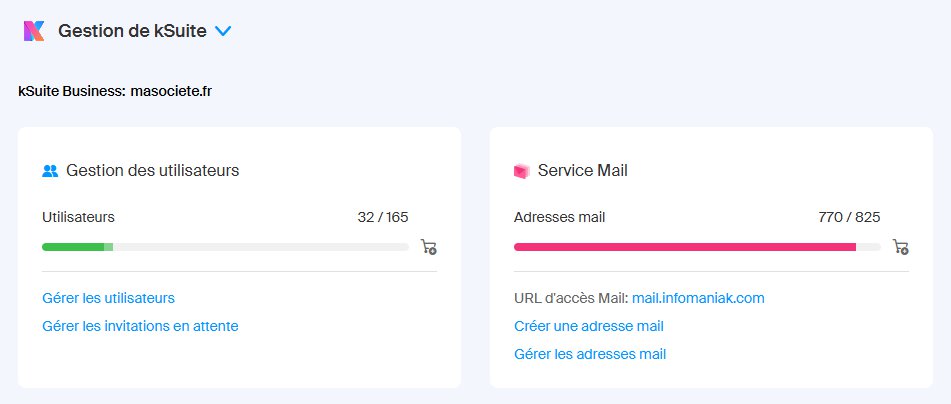
kSuite bundles Mail, kDrive, and more. To administer products, open the Manager, then your kSuite or the relevant Mail hosting product.
Organisation users (invitations and accounts)
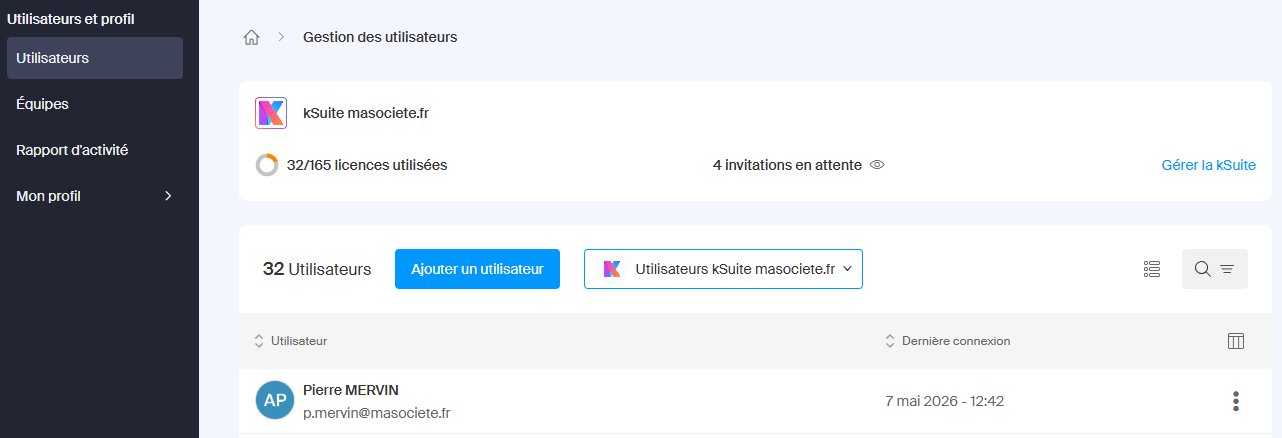
Before sharing a mailbox, the person usually needs to exist as a user in your Organisation (or accept an invitation that attaches them). Roles and product access are managed there. Infomaniak documents this in Managing organisation users in the Manager; we also cover the basics in Managing users in Infomaniak Manager.
Pick the mail service and address
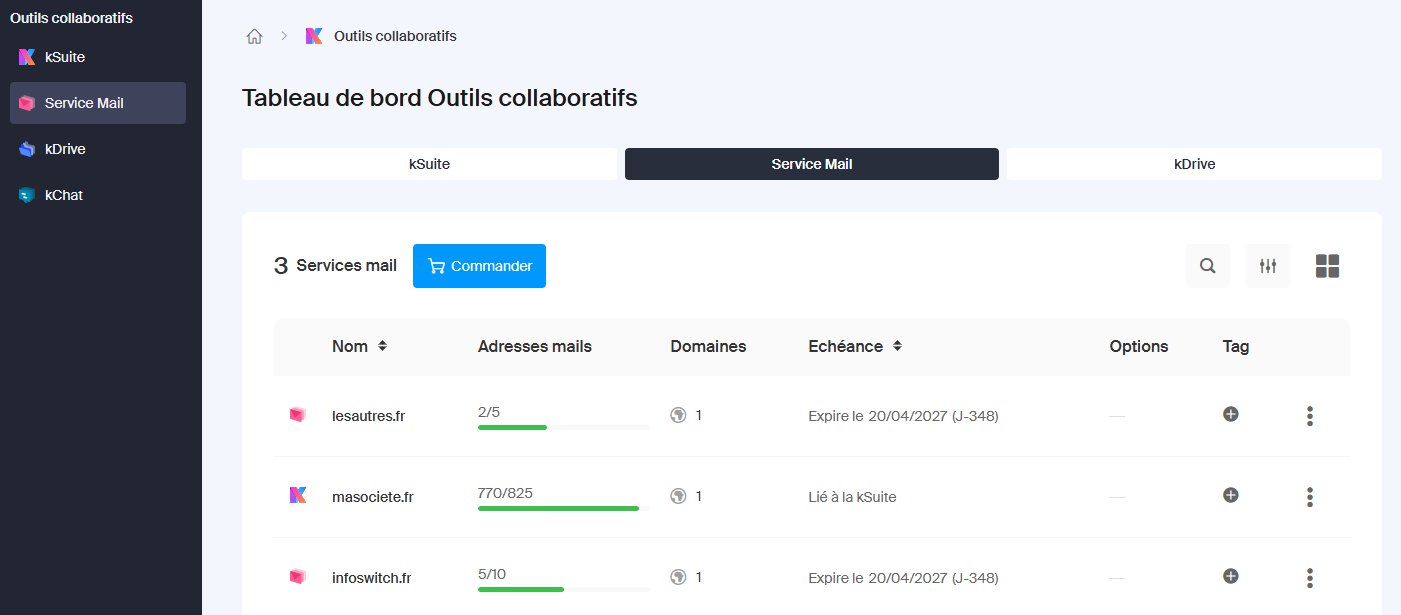
To link a mailbox to someone, open the correct Mail service, then select the address. At that level Infomaniak controls who may open it in the Mail app (ksuite.infomaniak.com/mail).
Add a user on the mailbox page
On the mailbox page, use Add (or equivalent) above the table of people who already have access in the Mail app. Infomaniak may ask for your account password (Manager login) to confirm — not the mailbox password.
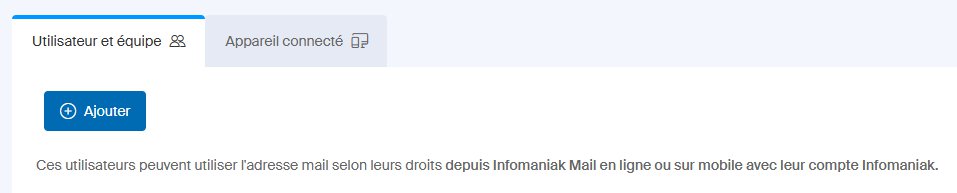
Official step-by-step details (including permissions) are in Invite a user to access an email address.
Existing member vs external: two paths
- User already in the organisation: select them, adjust permissions if needed, confirm. The mailbox appears in their Mail app.
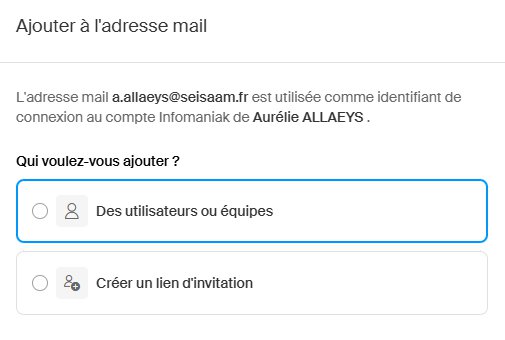
- Someone outside the organisation: choose the option for a new/external user, set rights, save, then confirm. Infomaniak creates an invitation URL (often
https://welcome.infomaniak.com/iw/…) they must open. After acceptance (and account creation if needed), the mailbox attaches to their Infomaniak user. No need to email them a mailbox password for this flow.
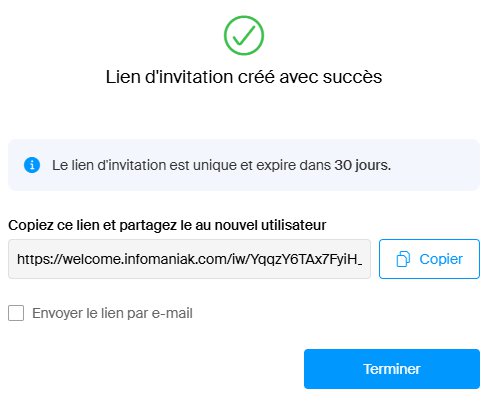
Invitation link
Copy or send the invitation from the UI; the recipient should open the link (ideally ready to sign in to the right Infomaniak account). After they accept, the address shows up in Mail with the rights you set.
Selecting the mailbox in the Mail app
If someone has several organisations or addresses, the selector at the top of the Mail app lets them switch mailbox or context. If a mailbox doesn’t appear right after linking, refreshing the page or showing all organisations (per Infomaniak’s FAQ) usually fixes it.
Security limitation
If the address is already used as a restricted login identifier in a context where Infomaniak forbids sharing, Invite may stay disabled. See Infomaniak’s related FAQ if buttons are greyed out or a security message appears.
Summary
- User account = Infomaniak sign-in (Manager, apps).
- Mailbox = resource you attach to one or more users via the Mail product.
- Invite or create the organisation user first if needed, then on the mailbox page Add access or send an invitation to an external person.
More on day-to-day user administration: Managing users in Infomaniak Manager.
Ready to migrate to Infomaniak?
Contact us for a free 15-minute audit. We will analyze your situation and provide you with a personalized quote.
Request a free audit