Want to set up an email client (Outlook, Thunderbird, Apple Mail...) or perform a migration to your Infomaniak mailbox? You\'ll need an application password. This tutorial guides you step by step through generating one from the Infomaniak Manager.
What Is an Application Password?
An application password is a unique, automatically generated password by Infomaniak that allows software or a third-party service to connect to your mailbox. It differs from your regular login password and enhances the security of your account.
Tutorial in 7 Steps
Step 1: Access the Mail Service from the Dashboard
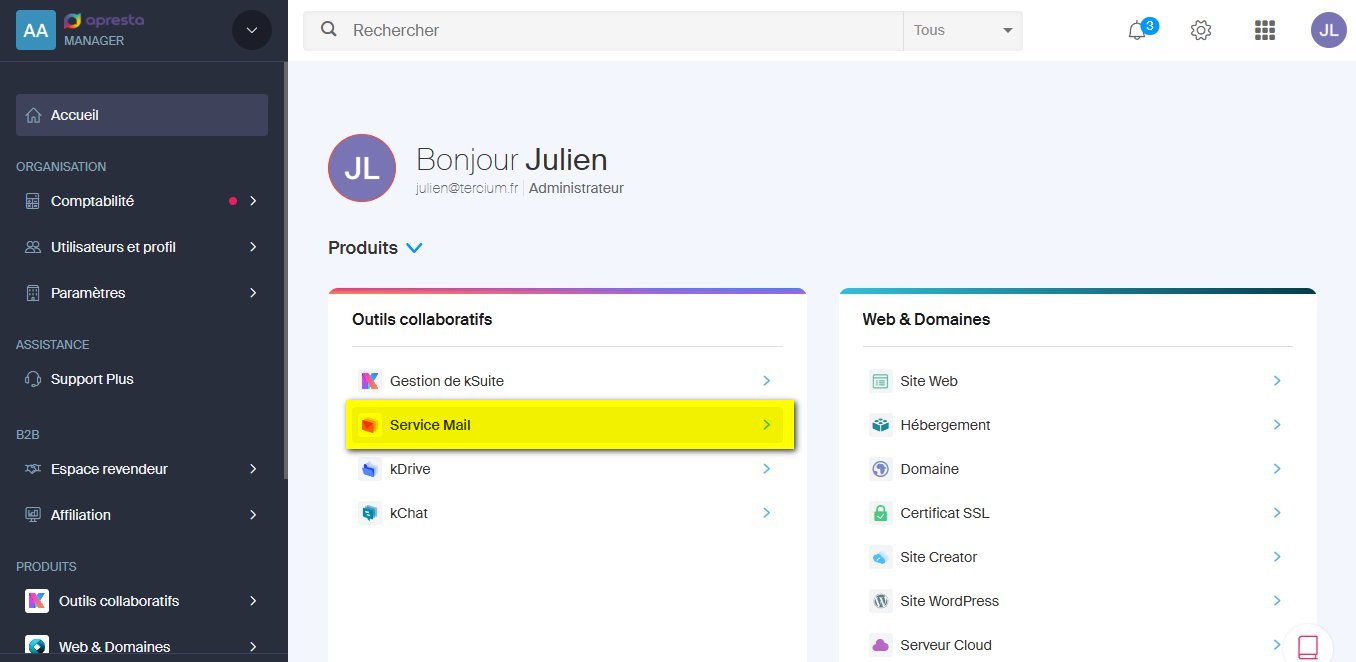
Log in to the Infomaniak Manager. On the administration dashboard, in the Collaborative Tools section, click on Mail Service.
Step 2: Select Your Mail Service
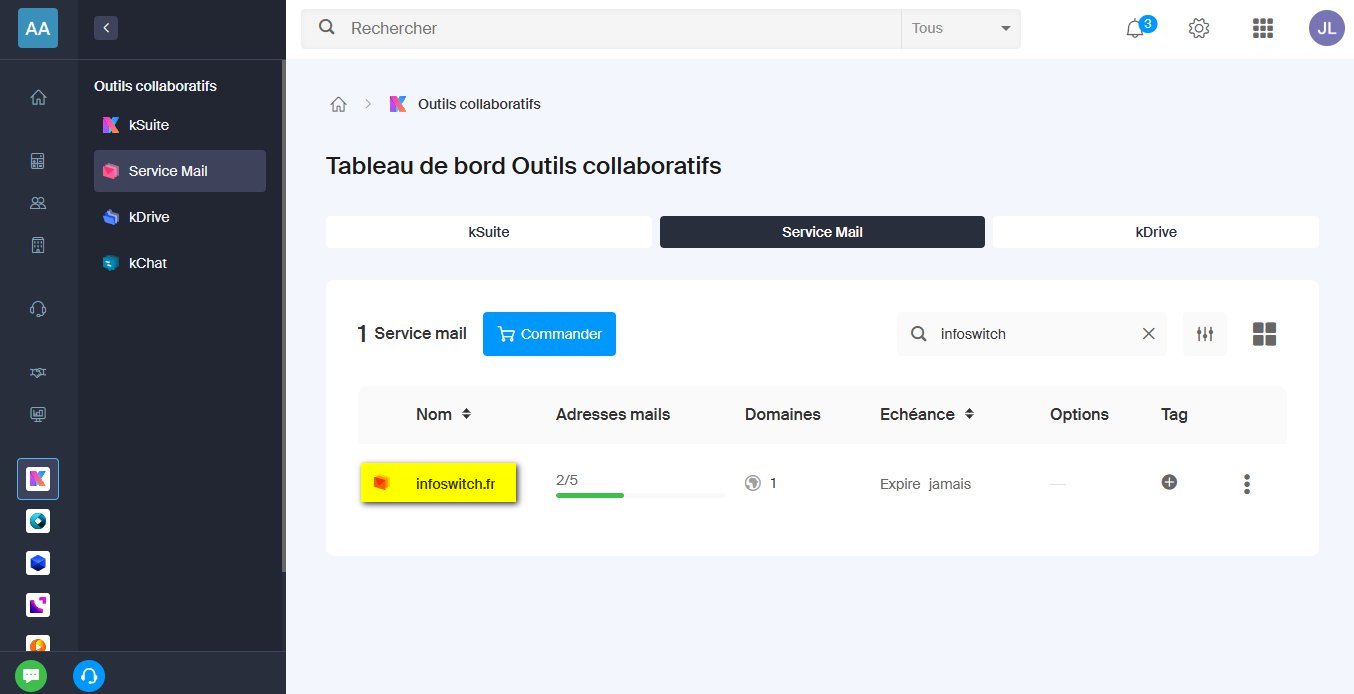
You arrive at the list of your mail services. If you have several, you can use the search bar to quickly find the right one. Click on the relevant mail service (e.g., infoswitch.fr).
Step 3: Choose the Mailbox
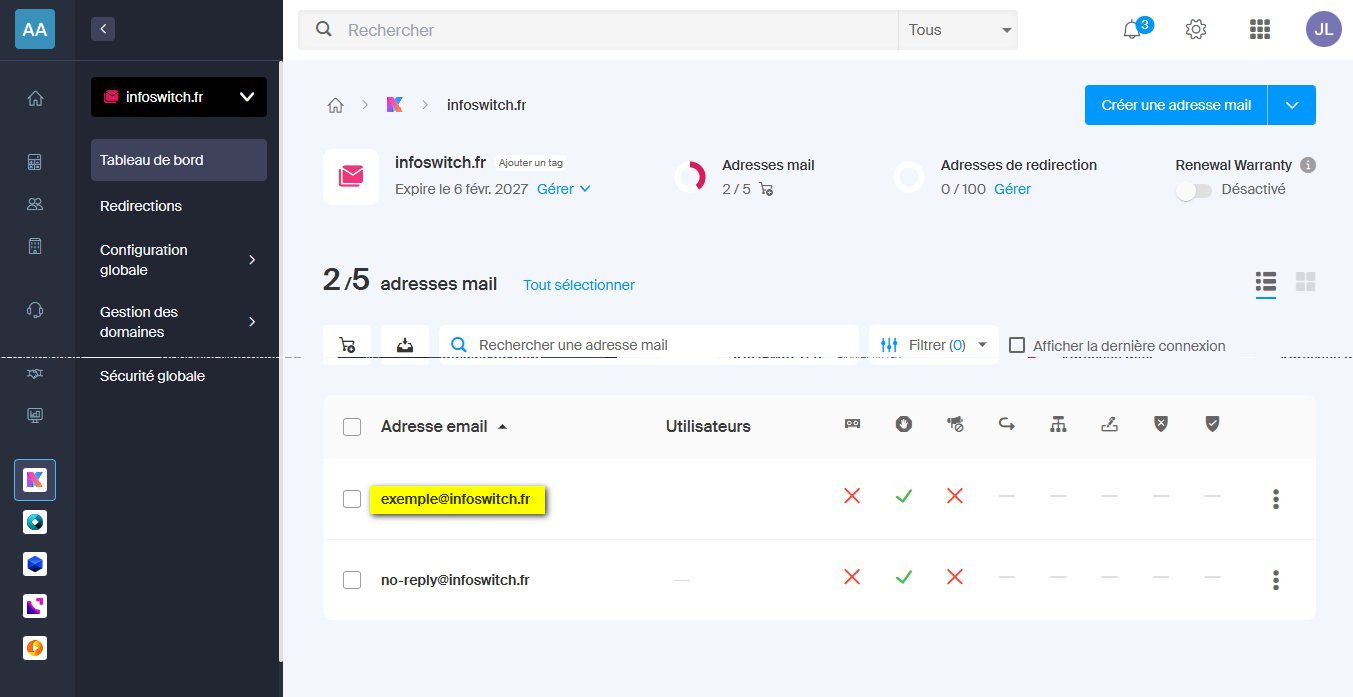
You now see the list of all email addresses associated with this service. Click on the mailbox for which you want to generate an application password.
Step 4: Go to the Devices Tab and Add
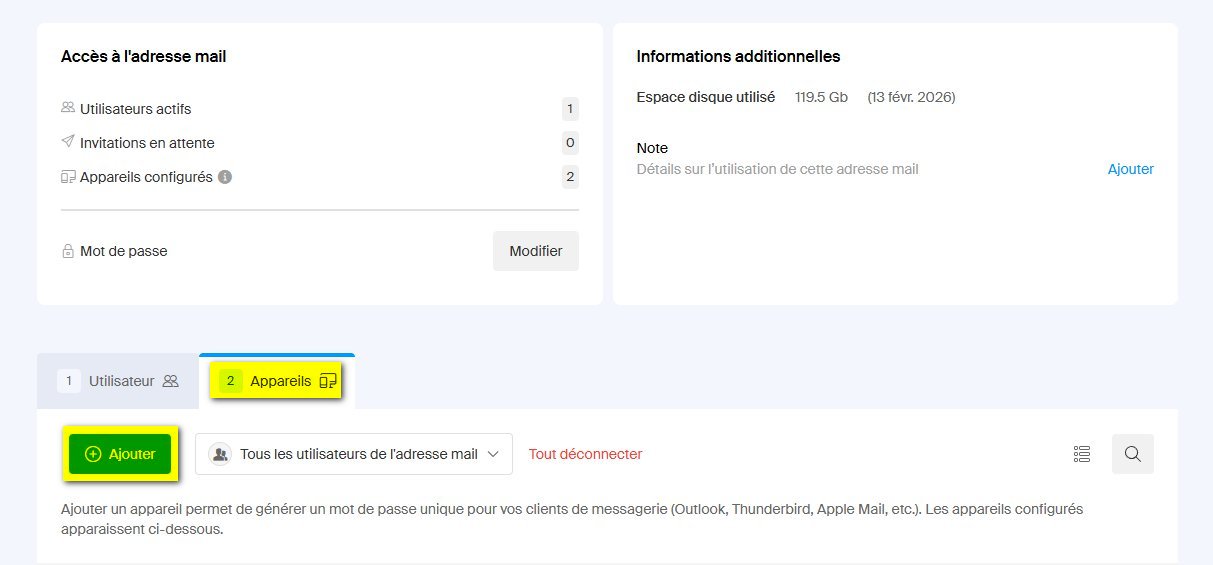
On the mailbox page, click on the Devices tab (tab #2). This tab allows you to manage application passwords for your email clients. Then click the Add button.
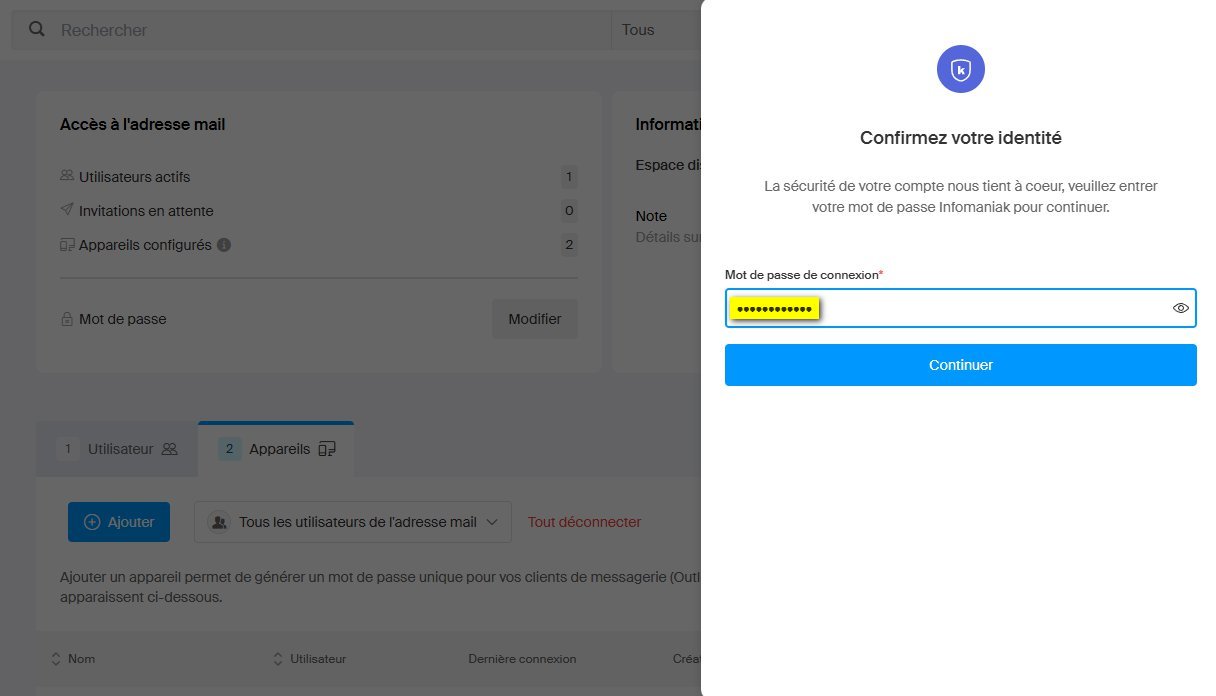
Step 5: Confirm Your Identity
Infomaniak asks you to confirm your identity by entering your Infomaniak account password (your Manager login password, not the mailbox password). This verification ensures that only the administrator can create access credentials.
Warning
This is your Infomaniak account password (the one you use to log in to the Manager), not the mailbox password itself.
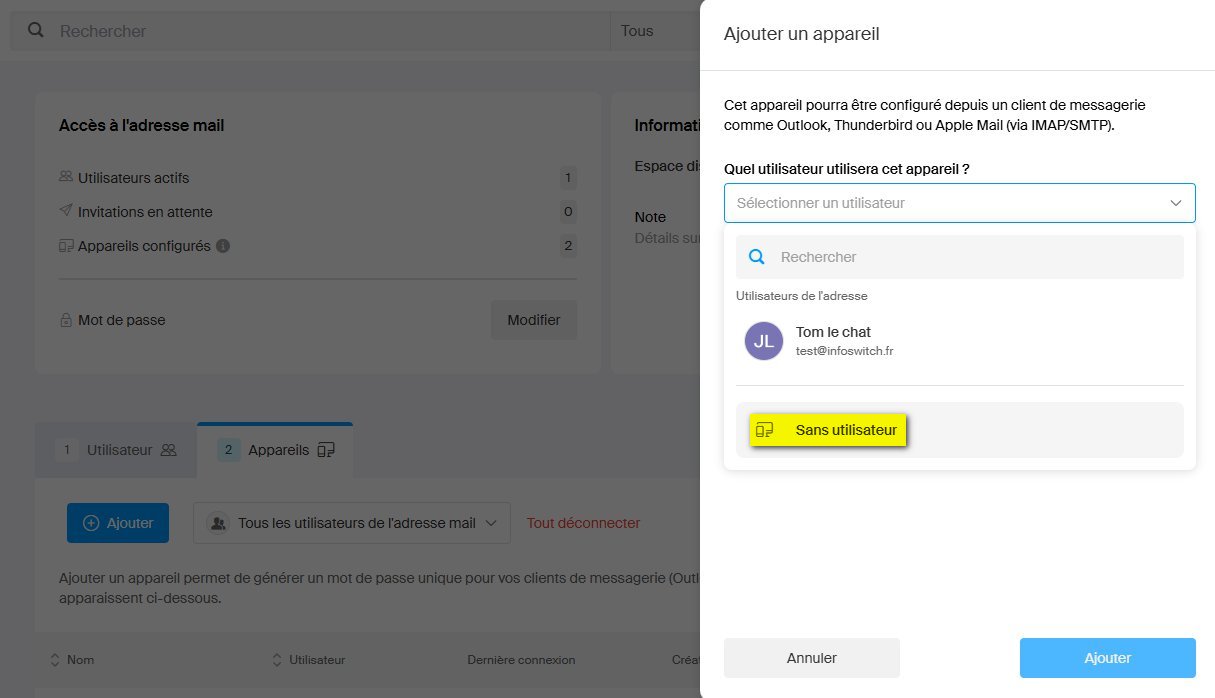
Step 6: Select "No User"
An Add a Device window opens. It asks which user will use this device. If you\'re setting up software or performing a migration, select No User. This option is ideal for service connections or migration tools.
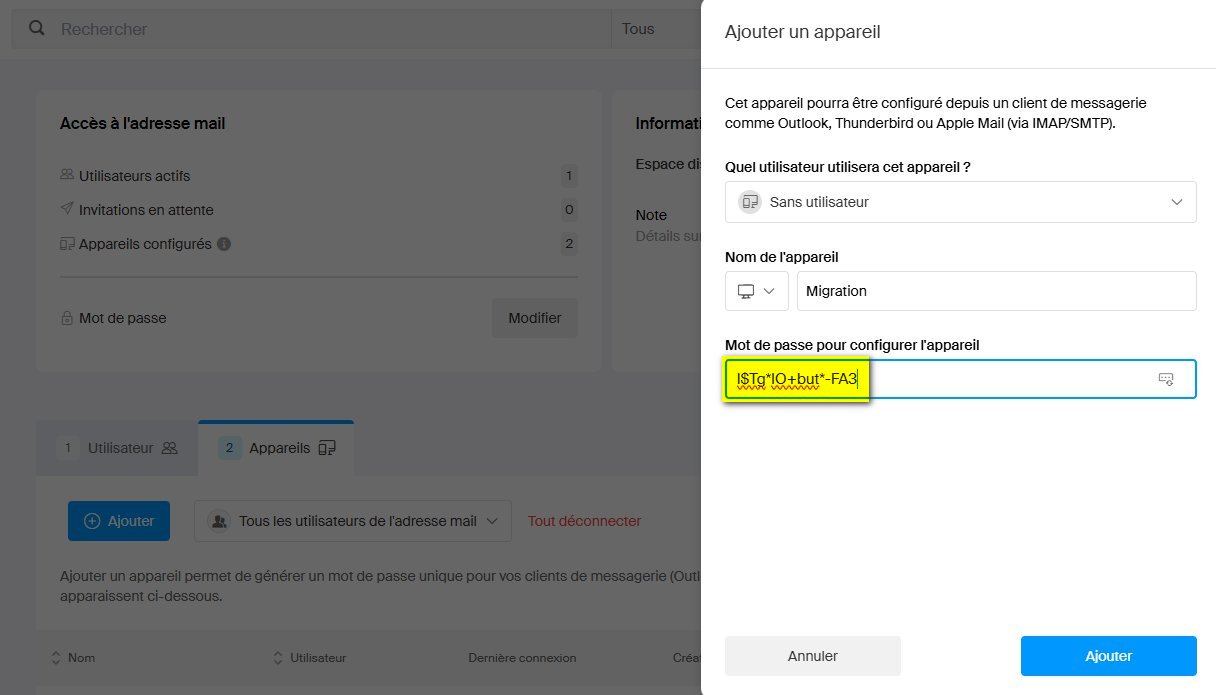
Step 7: Name the Device and Copy the Password
Give the device a name for easy identification later (e.g., Migration, Outlook Desktop, Thunderbird...). Infomaniak automatically generates a unique application password. Click the copy icon to retrieve it and use it in your email client or migration tool.
Tip
Copy the password immediately and paste it into your software. You won\'t be able to view it again afterward. If you lose it, simply create a new one by following the same procedure.
Where to Use This Password?
This application password can be used for:
- Setting up a mail client – Outlook, Thunderbird, Apple Mail, or any other email software
- Migrating your emails – During a migration to or from Infomaniak using tools like ImapSync
- Connecting a mobile device – iPhone, Android, tablet
- Integrating a third-party service – CRM, automation tool, etc.
Connection Settings to Use
With your application password in hand, here are the settings to enter in your software:
| Setting | Value |
|---|---|
| IMAP Server | mail.infomaniak.com |
| IMAP Port | 993 |
| IMAP Security | SSL/TLS |
| SMTP Server | mail.infomaniak.com |
| SMTP Port | 587 |
| SMTP Security | STARTTLS |
| Username | Your full email address |
| Password | The generated application password |
Managing Your Application Passwords
You can return to the Devices tab of your mailbox at any time to:
- View the list of configured devices and their last connection
- Delete access that\'s no longer needed (old software, completed migration...)
- Create a new password if necessary
It\'s good practice to delete application passwords you no longer need, to keep your account secure.
Ready to migrate to Infomaniak?
Contact us for a free 15-minute audit. We will analyze your situation and provide you with a personalized quote.
Request a free audit